
Online and In person registration for Winter programs (January – April 2026) opens Thursday December 11th at 8 am.
This page is designed to help you get aquainted to the new online registration process and take advantage of everything that the LSCO has to offer. There is lots more to come with this platform and we’re exited to slowly start to use it more!
You must have a MyActiveCenter (MAC) account to register online. This is needed for both members and non members. We recommend you do this prior to registration on December 11th and testing it early.
Before registration, we recommend you:
- Create a MyActiveCenter account using the instructions a little bit further down the page.
- Try to register for the “TEST REGISTRATION CLASS“. If you are a member, the program should appear as FREE. If it shows as $5, your MyActiveCenter profile might not be linked correctly OR your membership is set to expire before the class runs. If that happens, visit the admin desk or call us so we can update your information.
When registering, your membership must be active during the entire time a program is scheduled to run or you will not be able to pay the member price. Follow the instructions further down this page under “To Renew Your Membership Online” to check your expiry date and/or renew your membership. Or you can renew it in person just like normal.
We are actively working on a way for Ultimate Fitness members to register online for classes included in their membership.
For Winter Registration, Ultimate Fitness Members will still need to register in person. We want to make sure everything is working properly before adding additional layers to the system but the plan is for Ultimate Fitness Members to be able to register online next registration period.
Why are online registrations changing?
Our old online registration platform did not connect to our in person system MySeniorCenter, which meant staff had to manually duplicate online registrations, verify memberships by hand, and limit what could be offered online. Our new system—MyActiveCenter—is fully connected to the system you already use when signing in at the centre.
What this means for you
- Your new online MyActiveCenter account is linked to your membership number (or guest account if you are not a member).
- All programs will be available to register online.
- You will see all the programs you’re registered for, organized day-by-day, even if you didn’t register for them online.
- When you sign in for a program at the LSCO, that class will now be highlighted for you on the sign-in screen.
- You’ll be able to see which classes are full, and which are available for drop in.
- You’ll never have to worry about paying the non member price, as discounts will be automatically applied.
- You can renew your membership online
And many many more features to come!
To Create a MyActiveCenter account
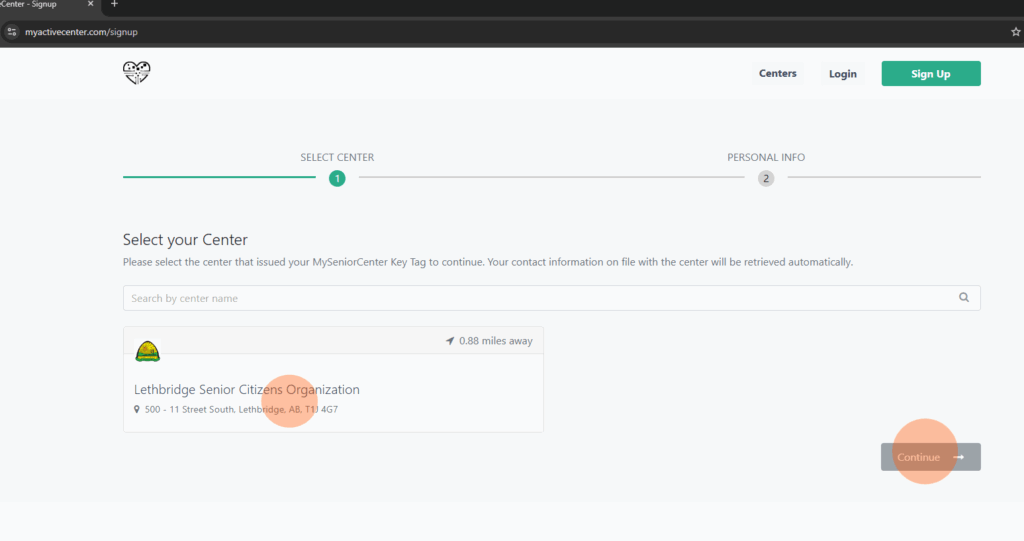
STEP 1: Go to www.myactivecenter.com/signup to create an account.
Select Lethbridge Senior Citizens Organization then Continue (If we don’t show up automatically, type “Lethbridge” where it says “Search by center name”
STEP 2: Create your account.
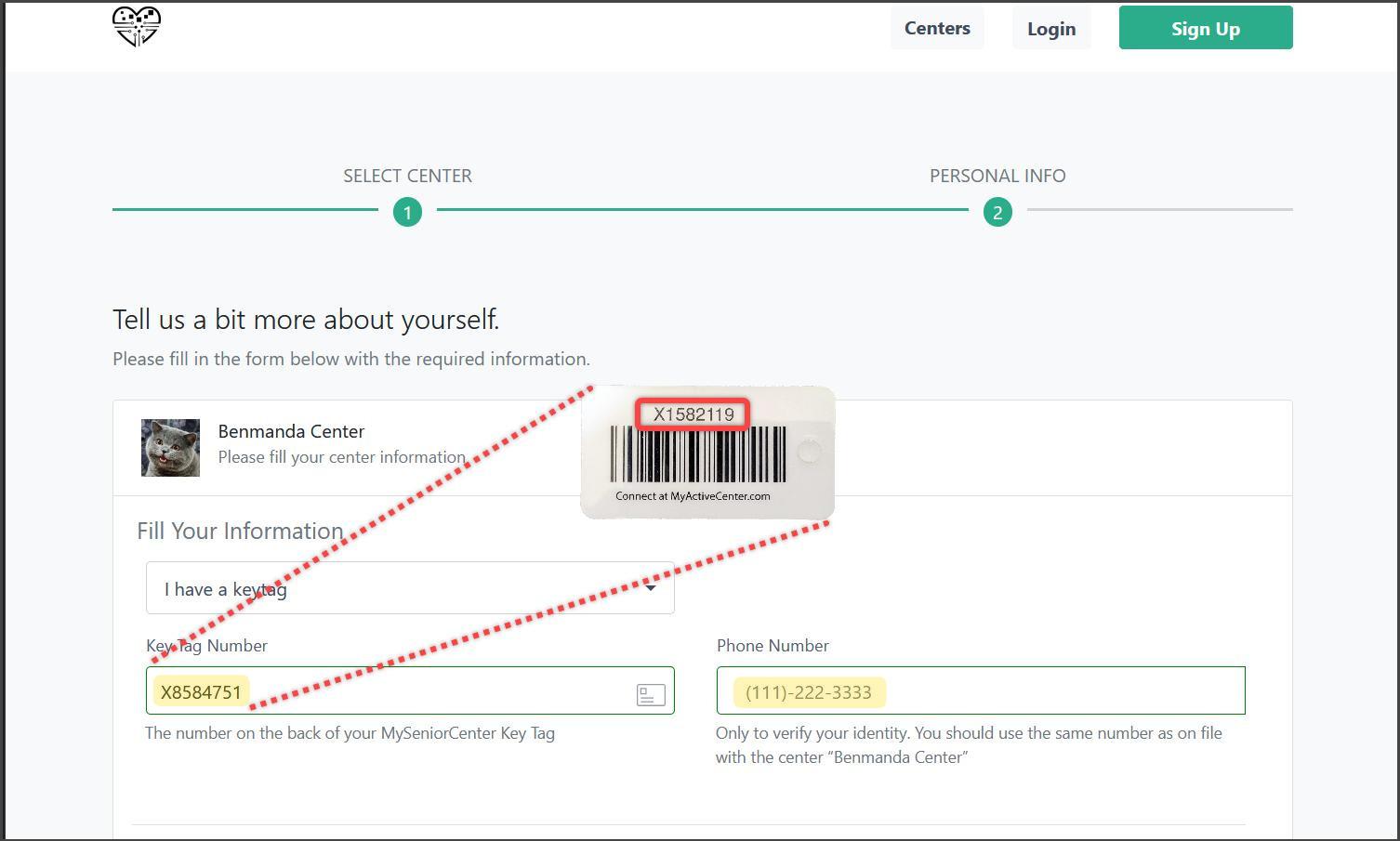
For members, choose “I have a key tag” and fill in your member number (this is the little plastic keytag with the barcode on the back you use to sign in), as well as your phone number. This phone number MUST match the phone number the LSCO has on file in order to sign up. If your phone number or member number does not match, you will receive an error when clicking “sign up” and will not be able to connect your account. please call the LSCO or visit the front desk so we can update your profile. As soon as it’s updated on our end, you should be able to complete the process.
You do have the ability to share this account with your spouse. You’ll have your two profiles connected to just one login and will be able to chose which spouse wants to register for each program.
For non members, chose I dont have a key tag and fill in your information.
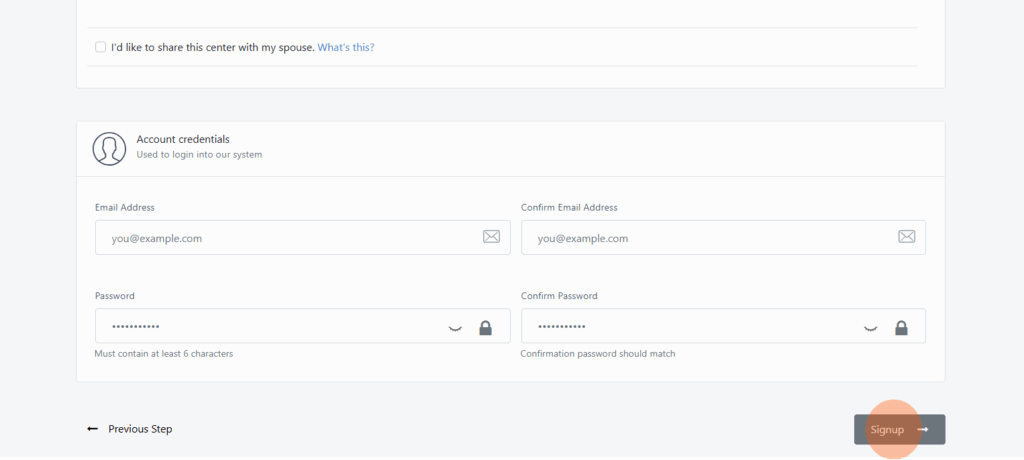
Scroll down to fill in an email address you’d like to use as well as a password. Confirm the password, and then click Signup. Please note, the LSCO does not have the ability to reset this password, so please make sure you keep track of it somewhere.
That’s it! Account created!
To Register for Programs
STEP 1: Go to www.myactivecenter.com and login. Enter your login info in the blue section on the right.
STEP 2: Choose the activity you want to register for by clicking on it. Classes with multiple sessions should appear when you select it. You can also filter available activities by the day they occur or their category. Alternatively, you may choose to view activities in a Calendar view.
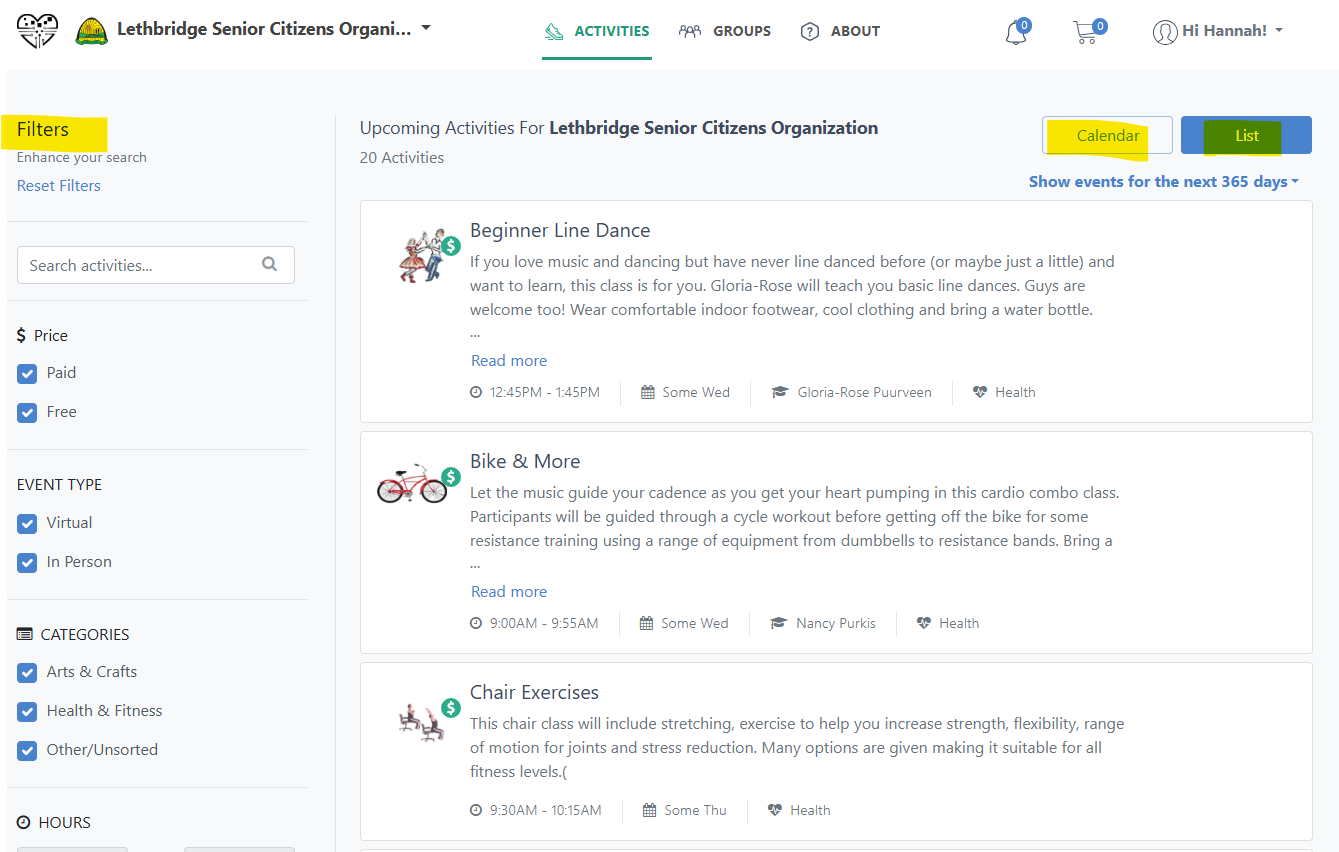
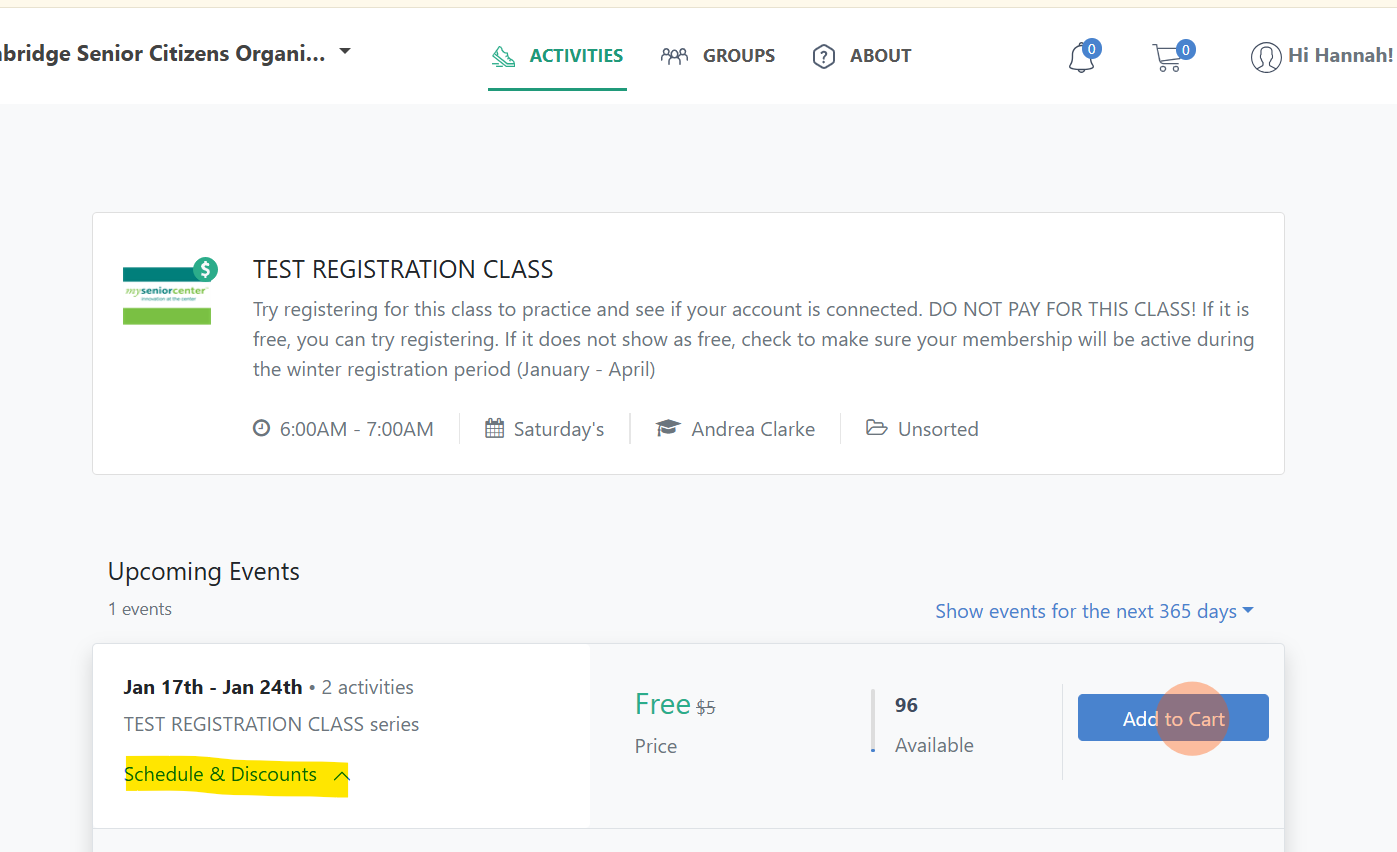
Step 3: Click the Add to Cart button to add the sessions(s) of your choosing to your shopping cart. If you are a member, the non-member price should be crossed out with the member price displayed instead. Your membership must be active during the entire time a program is scheduled to run or you will not be able to pay the member price. If the member discount is showing for some programs but not for others, your membership likely expires sometime during the the 4 month session. Follow the instructions further down this page under “To Renew Your Membership Online” to check your expiry date and/or renew your membership.
You can see discounts applied and the days the program is scheduled to run by clicking on “Schedules and Discounts” If you qualify for the Welcome policy and have set that up at the admin desk, the price displayed for you should be even lower than the member price.
Continue adding activities until you’re ready to check out. Click “Activities” at the top to add more programs. If the cart preview isn’t already open and you wish to navigate to your cart, you may open the cart-preview by clicking the little Cart icon in the upper right.)
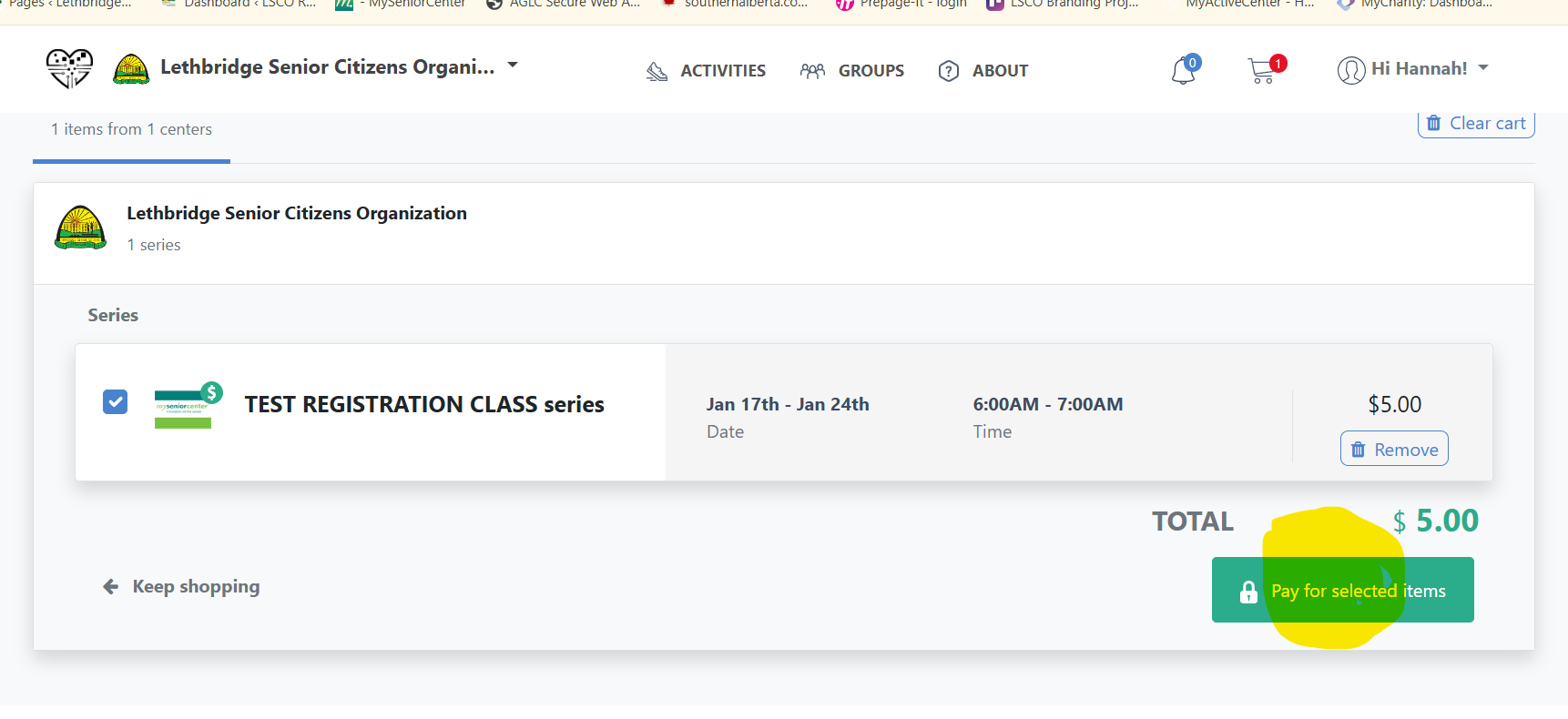
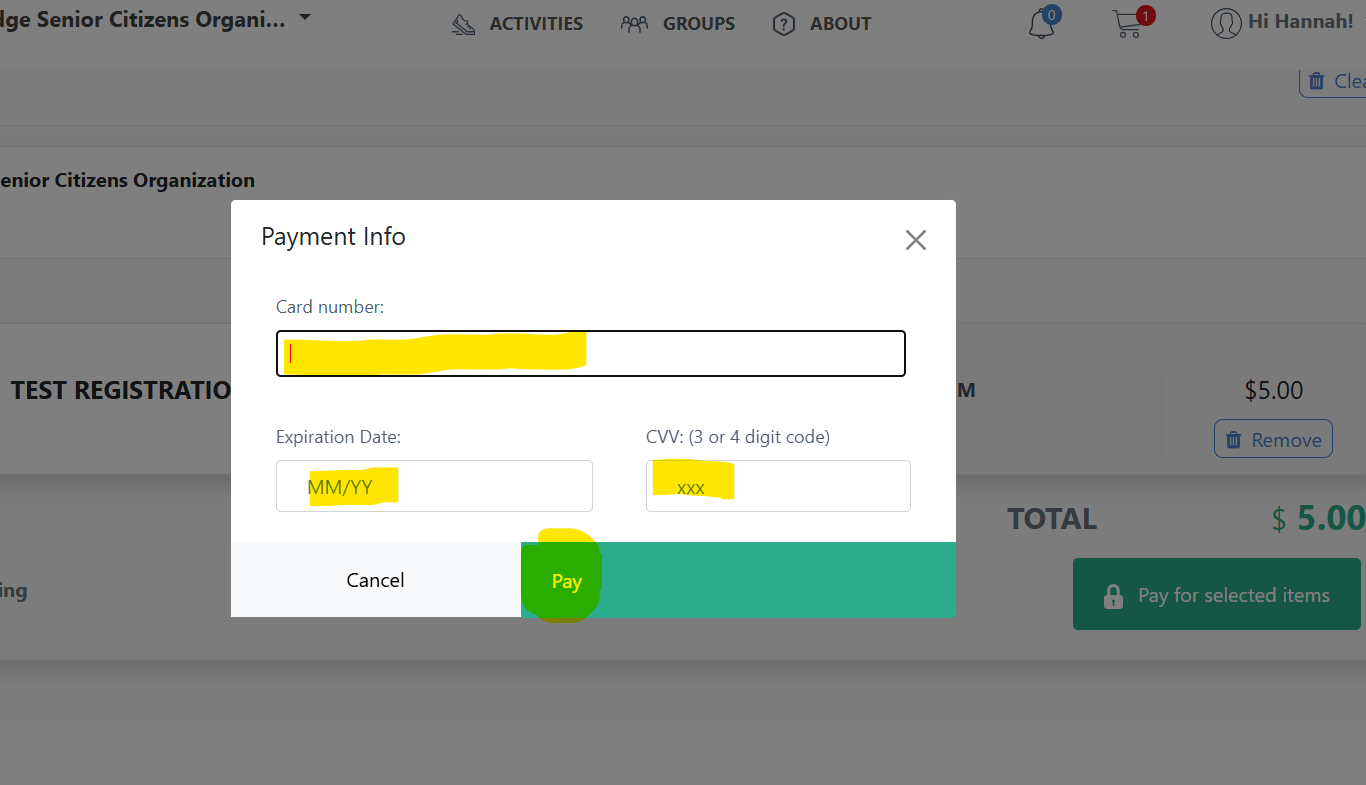
Step 4: Check out and pay when you have added all programs you would like by clicking “pay for selected items”. Fill in your credit card information and then click “pay”. MyActiveCentre does not save your credit card information to keep the site as safe as possible. You will need to re-enter your credit card information any time you would like to pay.
SUCCESS! You are now registered to everything in your cart. You can click View Schedule to see everything upcoming that you’ve signed up for, or Continue Browsing to go back to the LSCO’s activities.
To Renew Your Membership online (Or check when it expires)
For adult memberships, the process would be the same, but you would choose “LSCO Adult Membership”
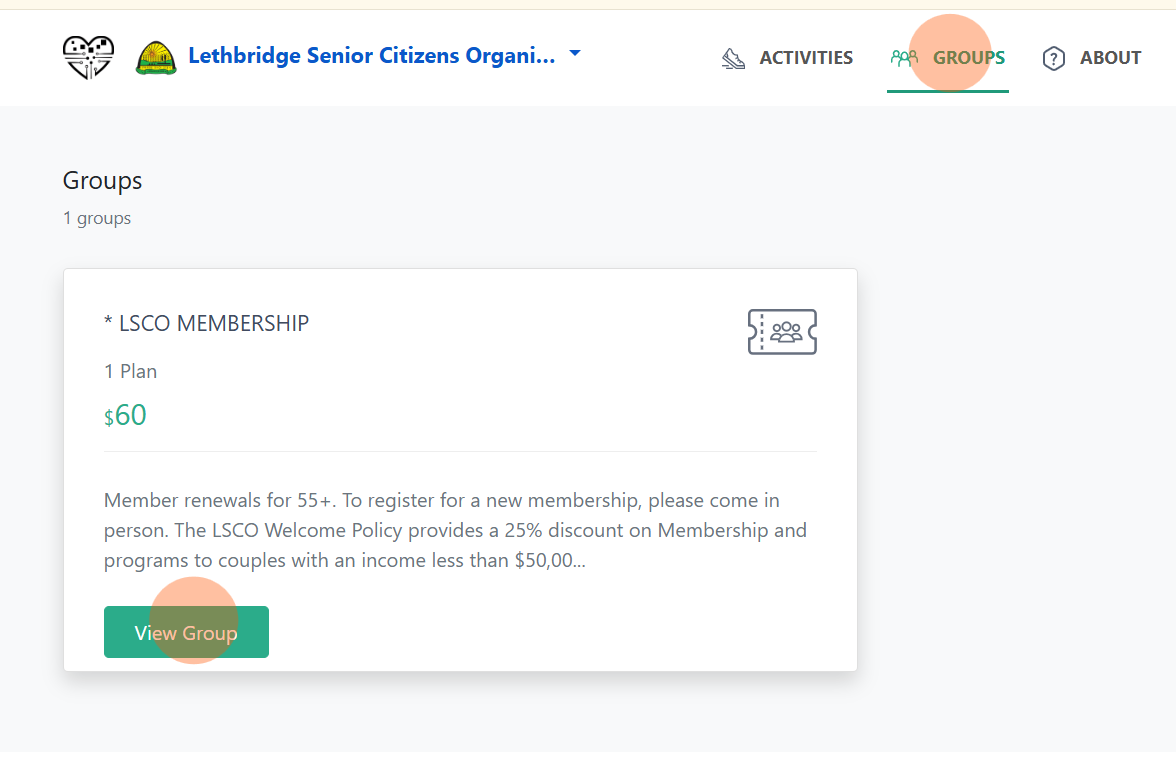
- Click “Groups” at the top of the page. Then click “View Group” under LSCO Membership
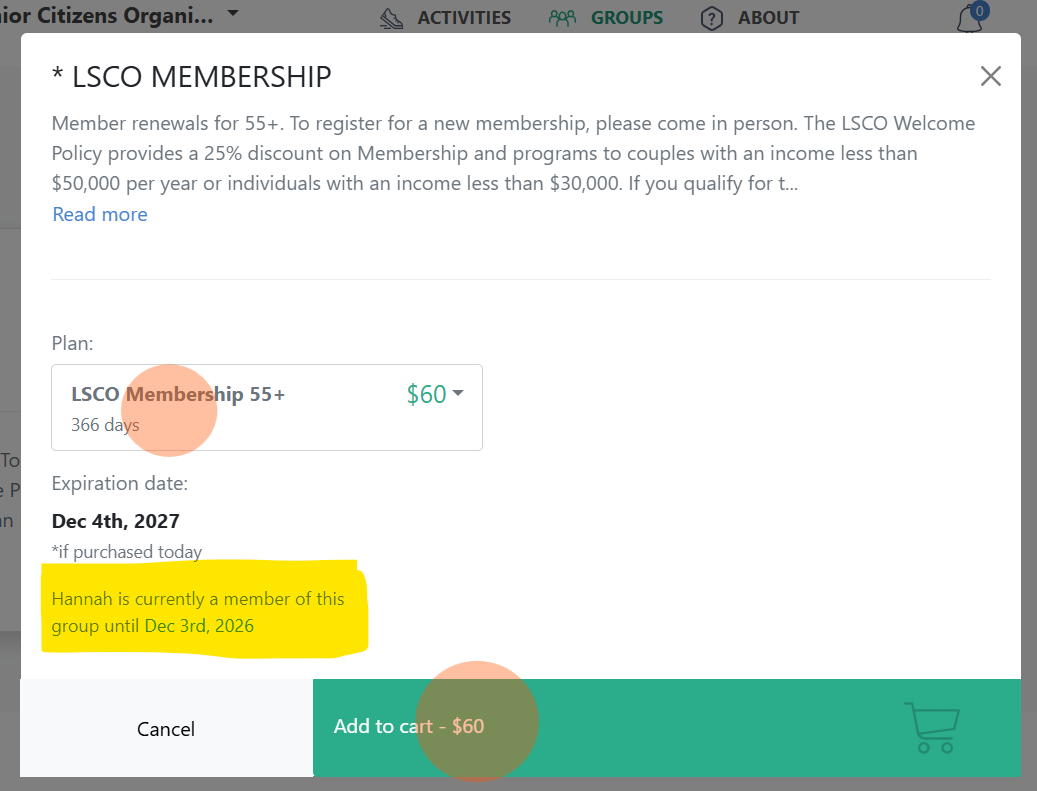
- Under Plan, choose LSCO Membership 55+. Now you should be able to see when your membership is set to expire. If you choose to renew, your new expiration date will be 1 year from you old expiration date
- Click “Add to Cart”. When you are ready to checkout, you can go to your cart to pay.
Please note: If you qualify for the LSCO Welcome Policy (25% of for couples with an income less than $50,000 or individuals less than $30,000), you will need to come into the LSCO to get that discount on your membership. Once your Welcome policy membership is completed, you can register for programs online and receive the Welcome Policy discount.
Need Help Creating Your Account? Support is available.
Sjoerd and Kevin in the Computer Lab will be available during December Sharing and Help Sessions from 1 – 4 on December 5, 8,10, 12, 15, 19, 22 . You can use the computers in the computer lab to set up your account.
You can also stop by Andrea’s office, located across from the sign-in computers
View this tutorial with steps and more indepth instructions.